
An advertising connection needs access to the ad account you intend to manage. A social publishing connection doesn't automatically provide every advertising permission.
Connect and sync#
- Open Brand → Social accounts and add or manage the relevant platform connection.
- Complete the advertising authorization available in that connection flow.
- Return to Ads and use the account sync control.
- Review the connected ad account names and currencies.
- Confirm the intended account before creating or boosting an ad.
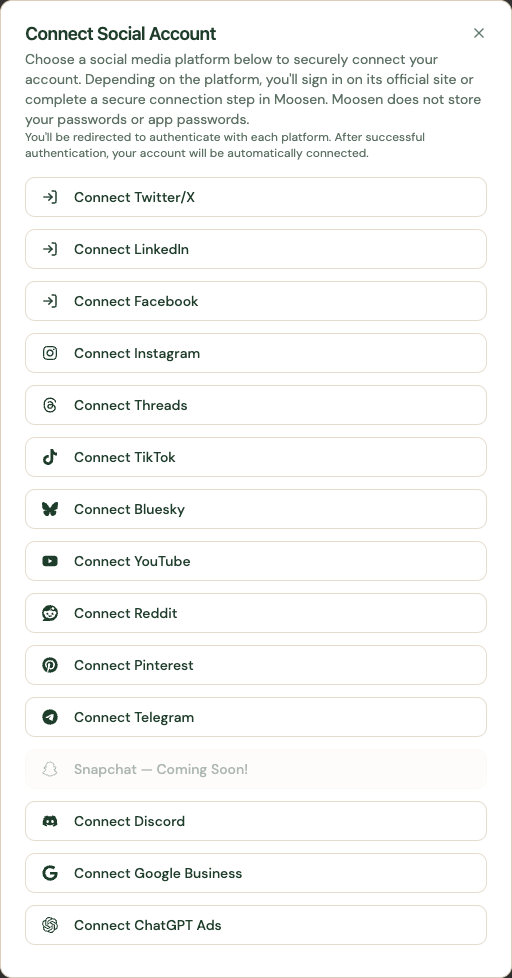
If an account doesn't appear, check that the signed-in platform user can manage that ad account. Reconnect the affected account if the permissions need updating.
Connect ChatGPT Ads#
Eligible advertisers can choose Connect ChatGPT Ads from the connection options. Follow the dialog to obtain an API key from ChatGPT Ads Manager and enter it in the connection field.
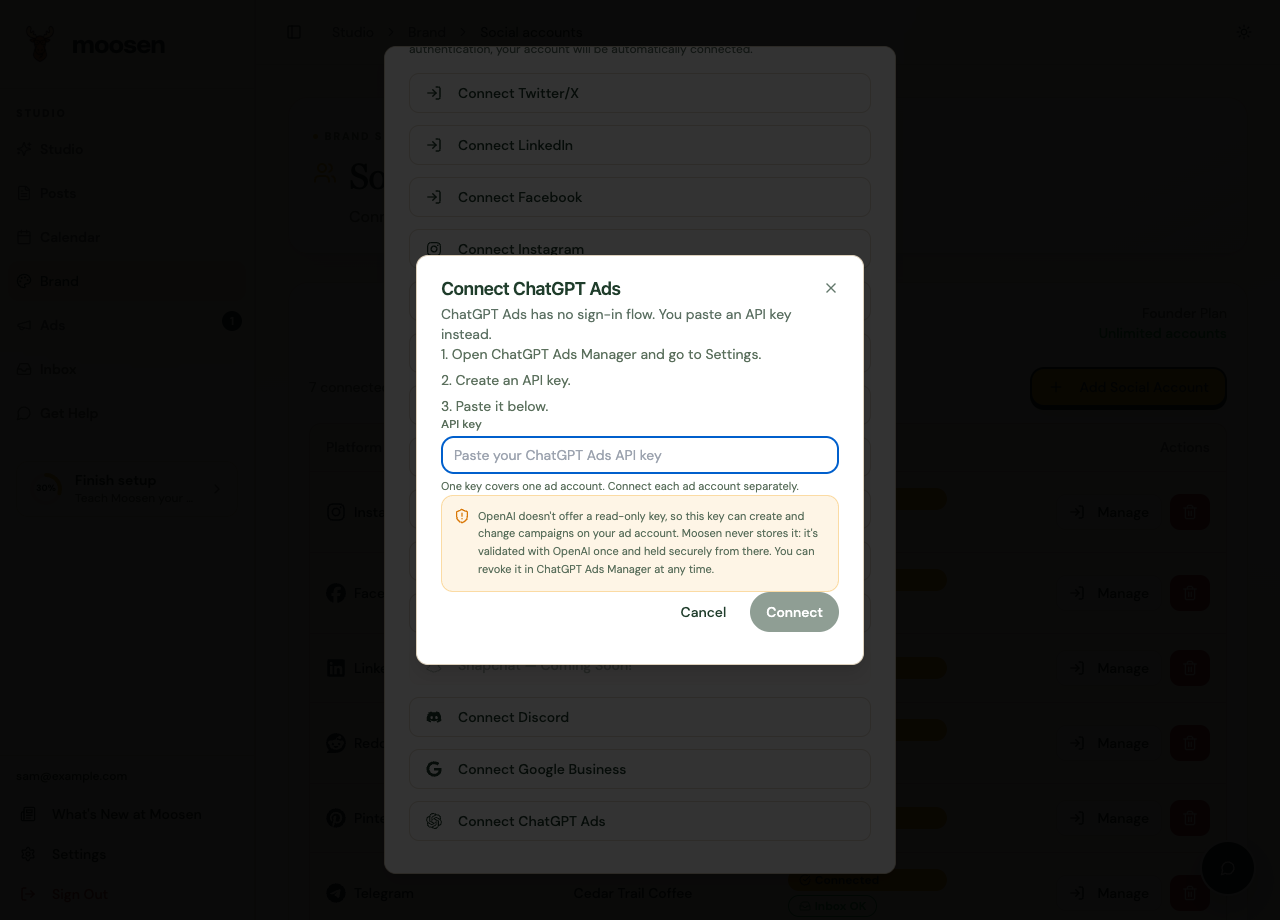
Keep the key private and read the permissions explanation in the dialog. Don't put it in a support message or screenshot.
Connect Reddit Ads#
Select your brand, then open Ad account connections in Brand → Social accounts and choose Connect Reddit Ads. Reddit advertising uses a separate connection from organic Reddit posting. Prepare the advertiser, ad profile and pixel in Reddit Ads Manager before creating an ad. Follow the Reddit Ads guide for permissions and pixel requirements.
Verify the paying account#
In ad creation, Post as identifies the publishing identity. Ad account (who pays) identifies the account charged for the campaign. Check both fields.
If you have accounts with different currencies, use the relevant account or currency scope when comparing budgets and results.