
Use Moosen to prepare and schedule video uploads. You'll need a YouTube channel you have permission to publish to, plus an active Moosen subscription.
Connect YouTube#
- Open Brand → Social accounts.
- Select Add Social Account, then Connect YouTube.
- Follow the sign-in and authorization flow. Read the permissions and choose the correct account or destination.
- Return to Moosen and confirm the connection is listed.
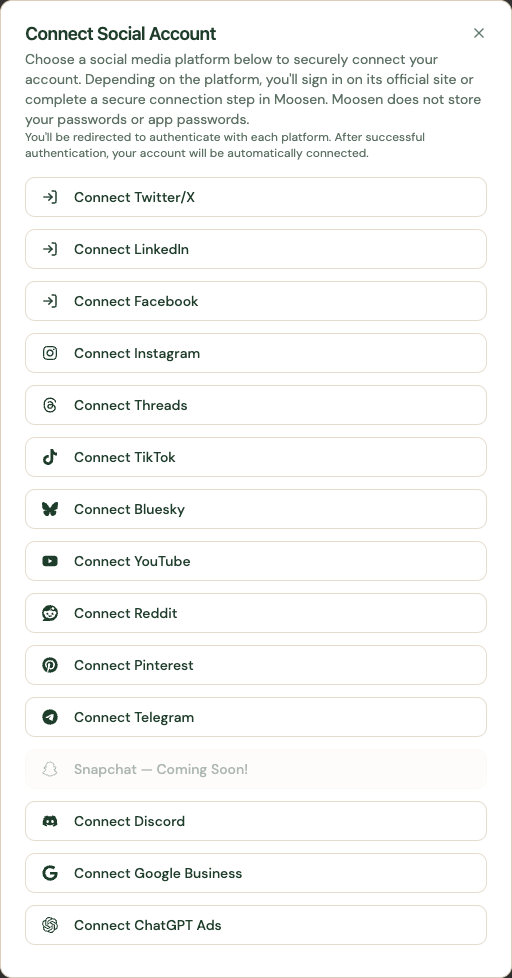 Start the YouTube connection from Add Social Account. Sample data. Select image to enlarge.
Prepare a post#
Upload a video and review the title, description, visibility, and other YouTube options presented by the composer. An image-only social post cannot be published as a YouTube video.
Open Posts, create a manual post, and select the connected YouTube account. Continue through content, media, and the available platform options.
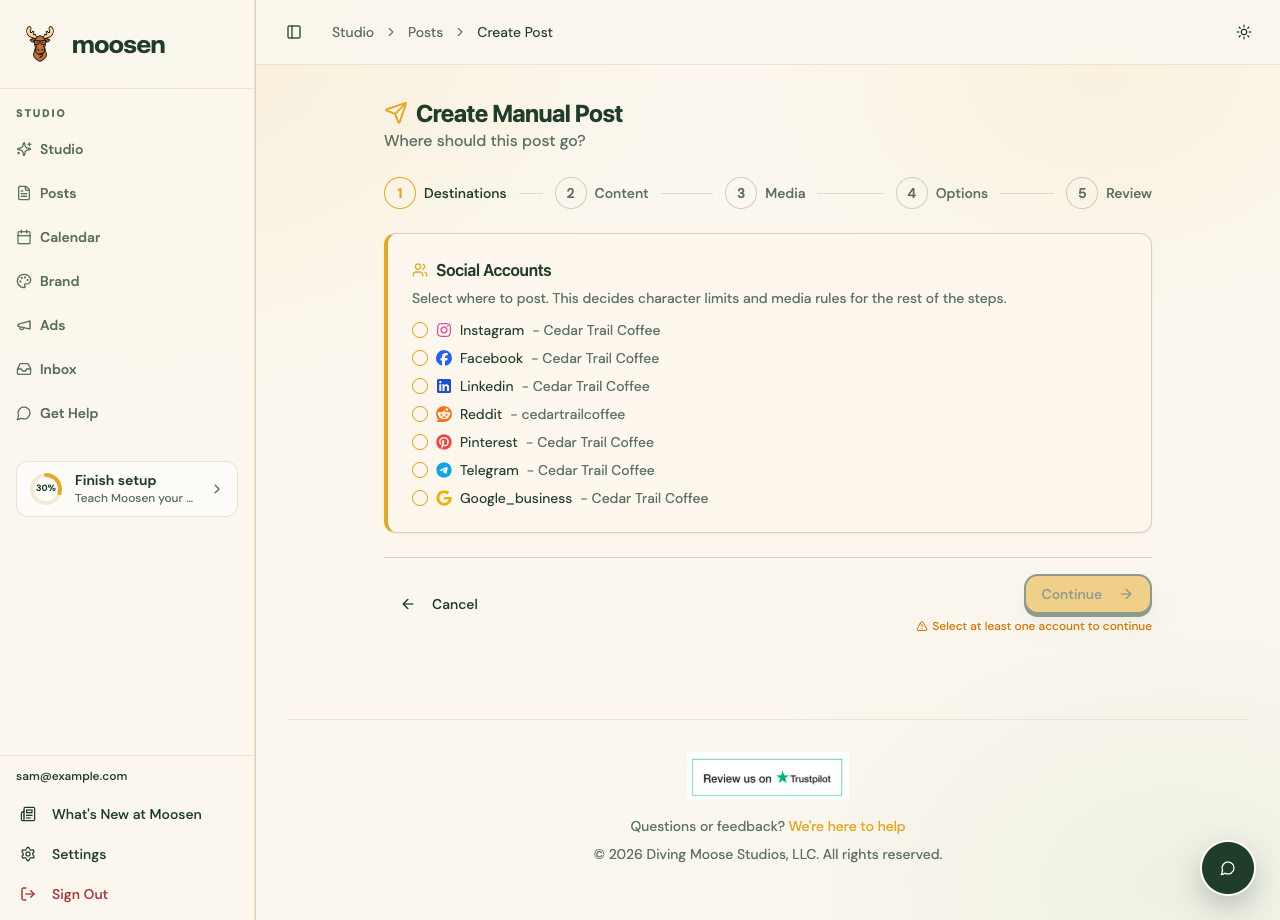 Select the intended account before writing and adding media. Sample data. Select image to enlarge.
Review the preview, choose Now or Schedule, and submit when ready. To include the account in automatic posts, select it in the brand's posting schedule.
Check delivery#
After publishing, open the post in Posts and inspect the YouTube result. Follow the live link when available. If it fails, read the destination error before retrying.
YouTube recycling is not supported in Moosen. Supported video comments can be managed through Inbox.
See fix a publishing problem for a step-by-step check.