
Calendar shows your posting schedule visually. Use it to spot gaps, review upcoming content, and adjust individual posts.
Browse the calendar#
- Open Calendar in the sidebar.
- Move between dates with the calendar controls.
- Select a post to preview its content and publishing time.
- Check its destination accounts before making a change.
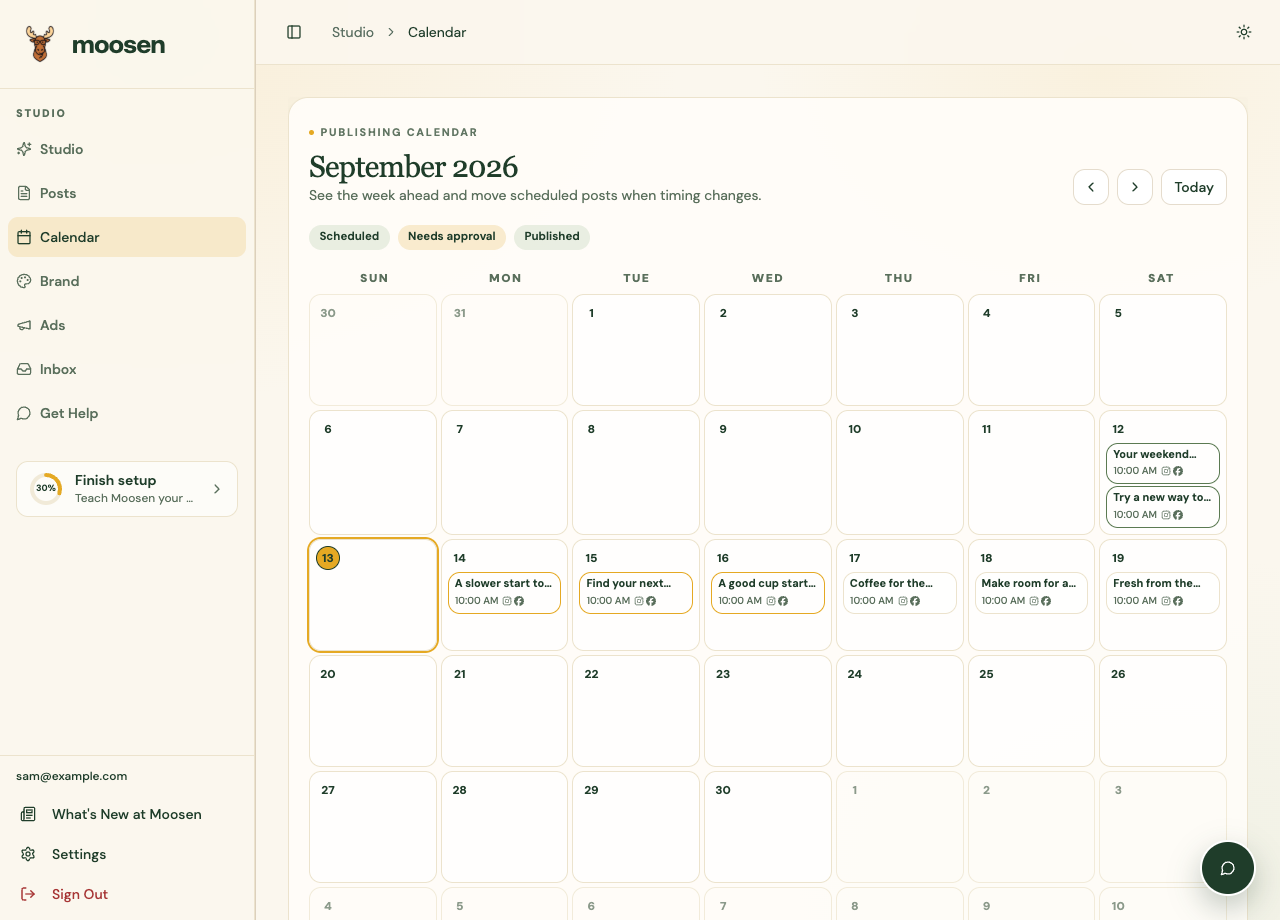 Open a calendar post to inspect its content and timing. Sample data. Select image to enlarge.
Reschedule a post#
Drag an eligible post to another day, or open it and use the reschedule controls. Choose the intended date and time and save the change.
Published posts can't be moved back into the future by dragging them. If you want another publication, use the supported repost or recycling workflow.
Check your timezone#
The timezone in Settings controls how scheduled times are displayed. Changing that display setting doesn't move an already scheduled publication.
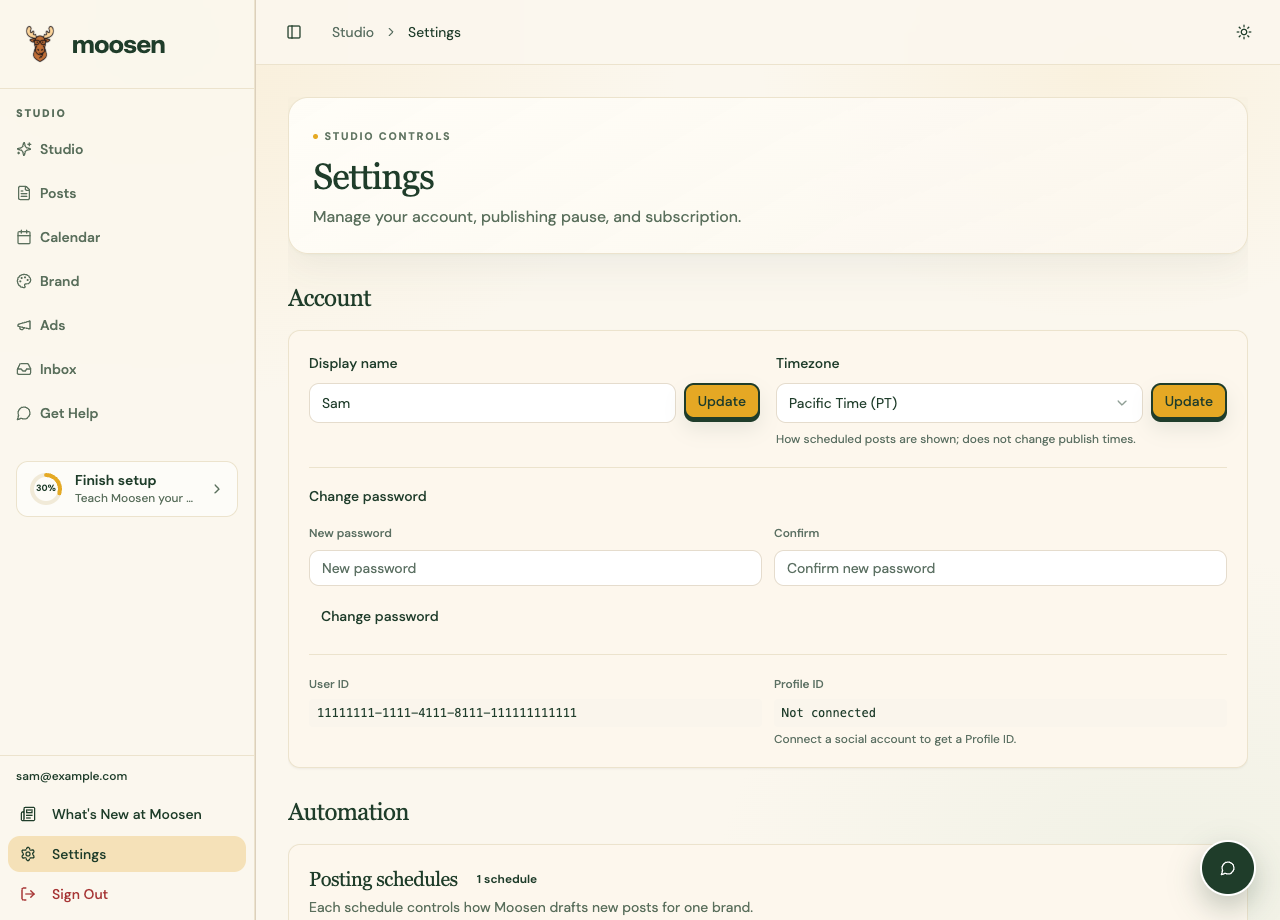 Confirm the timezone before comparing scheduled times. Sample data. Select image to enlarge.
After rescheduling, open the post again and verify the saved date and time. Check the platform result after publication, especially if the post was changed close to its scheduled time.
The posting schedule controls the cadence of future drafts. Calendar controls individual posts.
WordPress and Shopify article schedules run on the website and are managed in Blog. They do not appear as social posts to move in this Calendar.