
Your library brings together images found on your website and photos you upload yourself. Your own photos give Moosen more relevant material to work from.
Upload photos#
- Select your brand and open Brand → Your library.
- Use the upload control to choose images from your device.
- Wait for the upload to complete.
- Confirm the photos appear in your library.
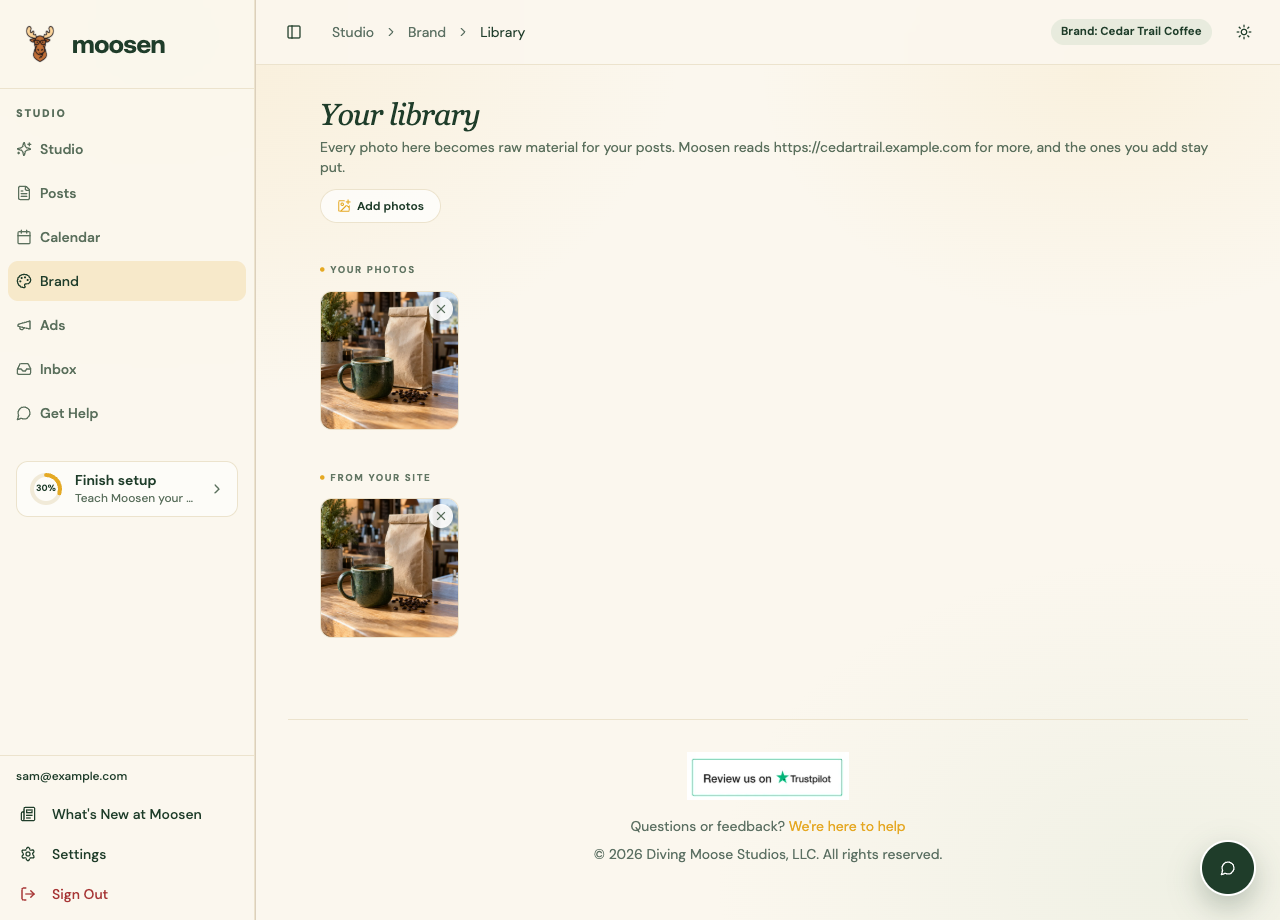 Add photos to the selected brand's library. Sample data. Select image to enlarge.
The library accepts JPEG, PNG, GIF, and WebP images up to 10 MB each. Use sharp, well-lit photos and readable product labels.
Remove an unwanted photo#
Find the image and select its remove control. Uploaded photos can be removed from the library. Removing a website photo excludes it from the brand's library selection, including later website refreshes.
Removing a library photo doesn't delete a post that already uses it. Review or edit those posts separately.
Use the right image setting#
In Settings → Automation, review Post images for the brand's schedule. That choice affects how Moosen combines source photos and generated images.
For one specific post, use the post media controls or Refine.
Google Drive library imports are coming soon. Upload from your device for now.