
Social analytics describe the results reported by your connected channels. They are separate from the paid campaign metrics in Ads.
Open published-post results#
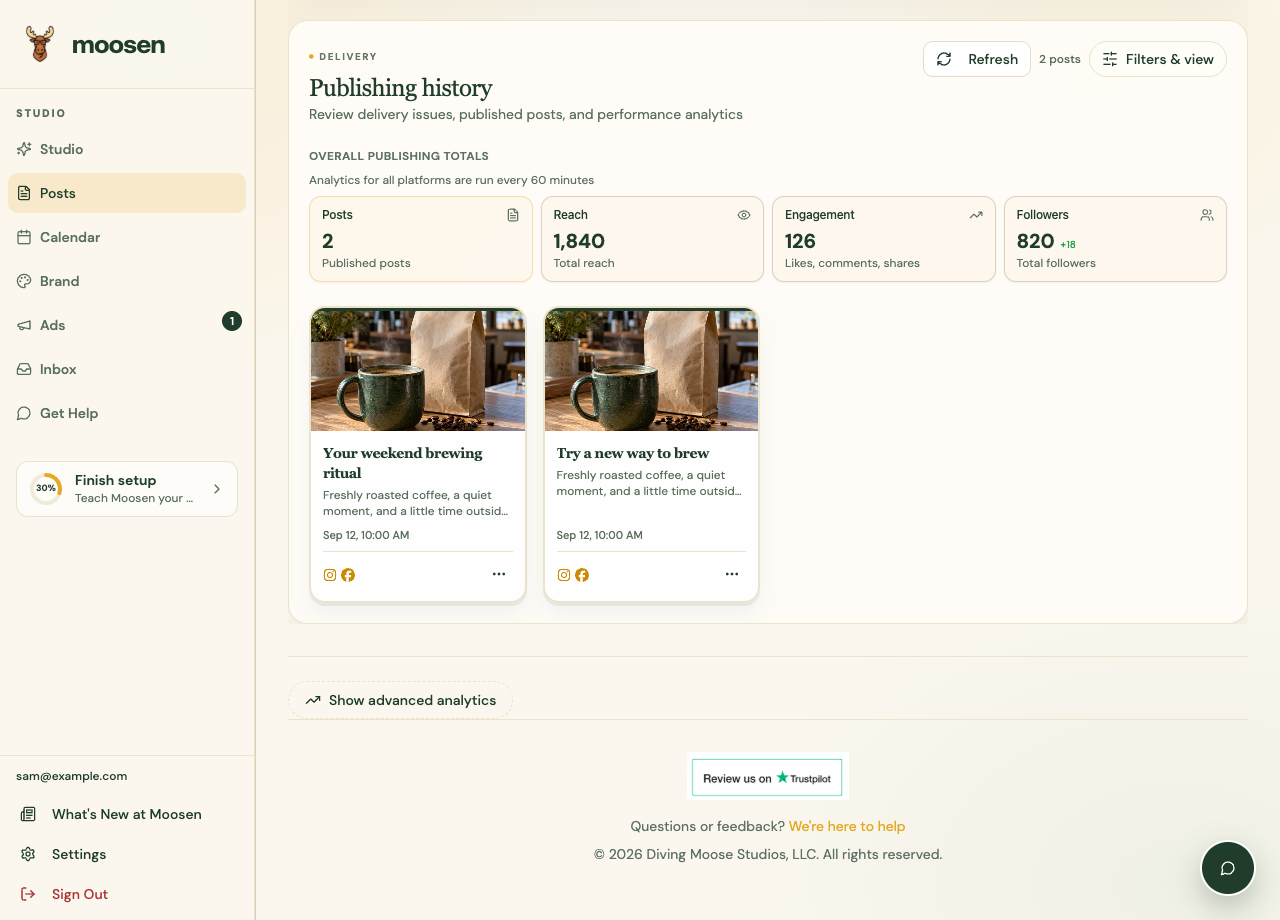
- Open Posts and find the published-post history and analytics area.
- Choose the available period and filters.
- Review reach, engagement, follower, and post-level measurements that are available for the connection.
- Open an individual post for its delivery details and timeline.
Read available insights#
Below the Posts content, select Show advanced analytics to open the best-time, content-performance, and posting-frequency views. These require supported analytics access and source data.
A best-time suggestion is based on available history. You can use it when choosing a time in the composer or post editor, then inspect future results.
Understand missing data#
Not every platform returns the same measurements. Some analytics can require additional access or a supported account. Follow the message shown in the app if analytics aren't available.
New accounts and recent posts may not have enough history. Missing metrics don't necessarily mean the post failed. Check delivery status separately.
Use results in your next posts#
Look for useful topics, media, and timing patterns across comparable posts. Use those observations when you refine content, update the writing guide, or select a posting cadence.