
The publishing pause lets you choose a resume date. It's separate from stopping automatic drafting or changing autopilot.
Pause publishing#
- Open Settings.
- Find Publishing → Pause publishing.
- Choose the date until which publishing should pause.
- Apply the pause.
- Confirm that the paused-until date appears.
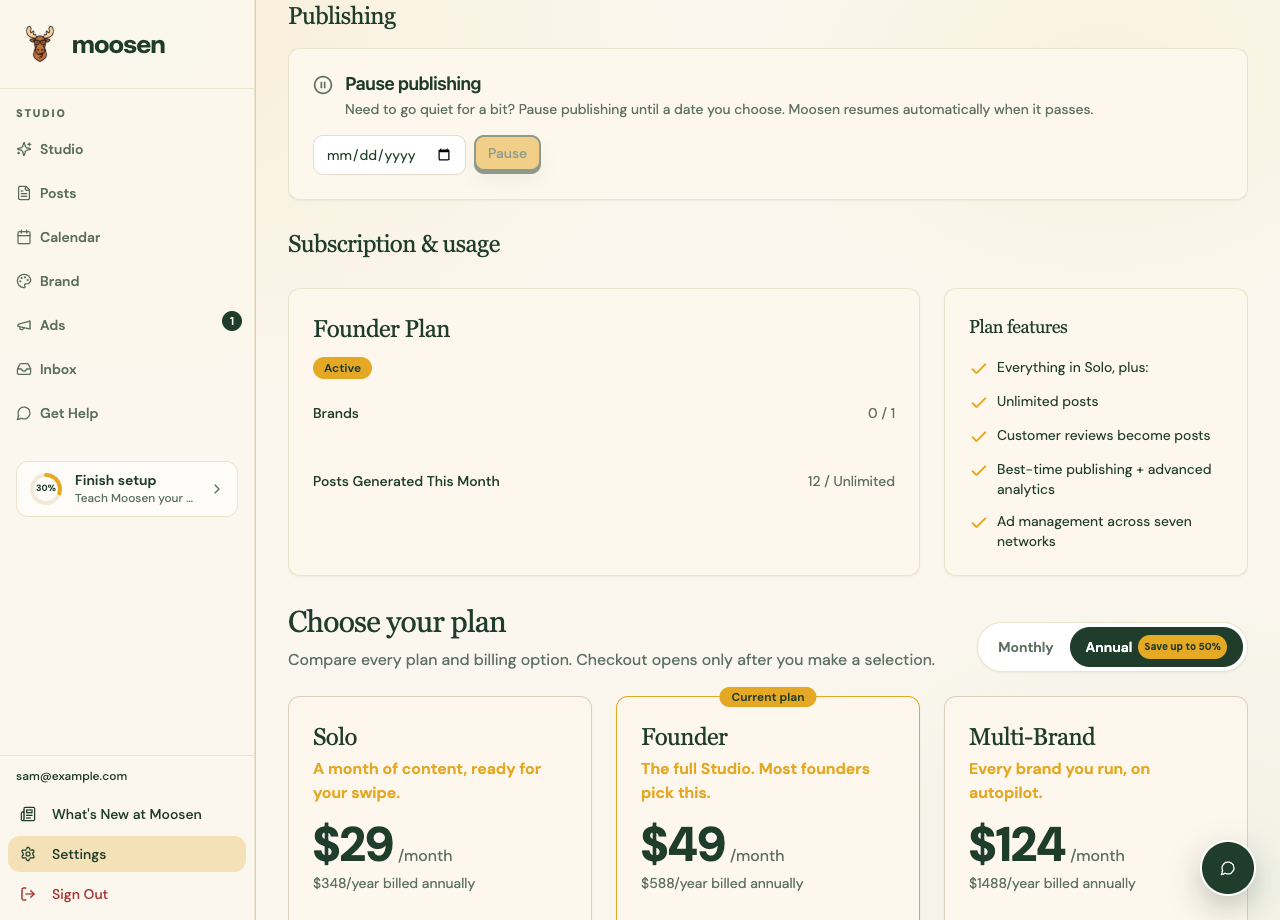 Set a date and confirm the pause shown by Moosen. Sample data. Select image to enlarge.
Check the brand context and the queued posts affected by the pause. For multiple brands, also inspect each schedule and its destinations.
Resume early#
Return to the same section and select Resume now. Moosen also resumes automatically when the pause date passes.
Before resuming, review Posts and Calendar for anything whose timing or message is no longer appropriate.
Stop new drafts instead#
Use Settings → Automation → Automatic drafting to stop creating new drafts for a schedule. Use Autopilot to choose whether new drafts require approval.
A publishing pause doesn't remove content already live on social platforms. It also doesn't pause paid ad campaigns. Manage those separately in Ads. It also doesn't stop native WordPress or Shopify article schedules. Manage those in Blog and the connected website.