
With autopilot off, you approve generated drafts in Studio. With autopilot on, Moosen can publish automatically without that review step.
Turn on autopilot#
- Review several drafts and make sure your brand guidance is accurate.
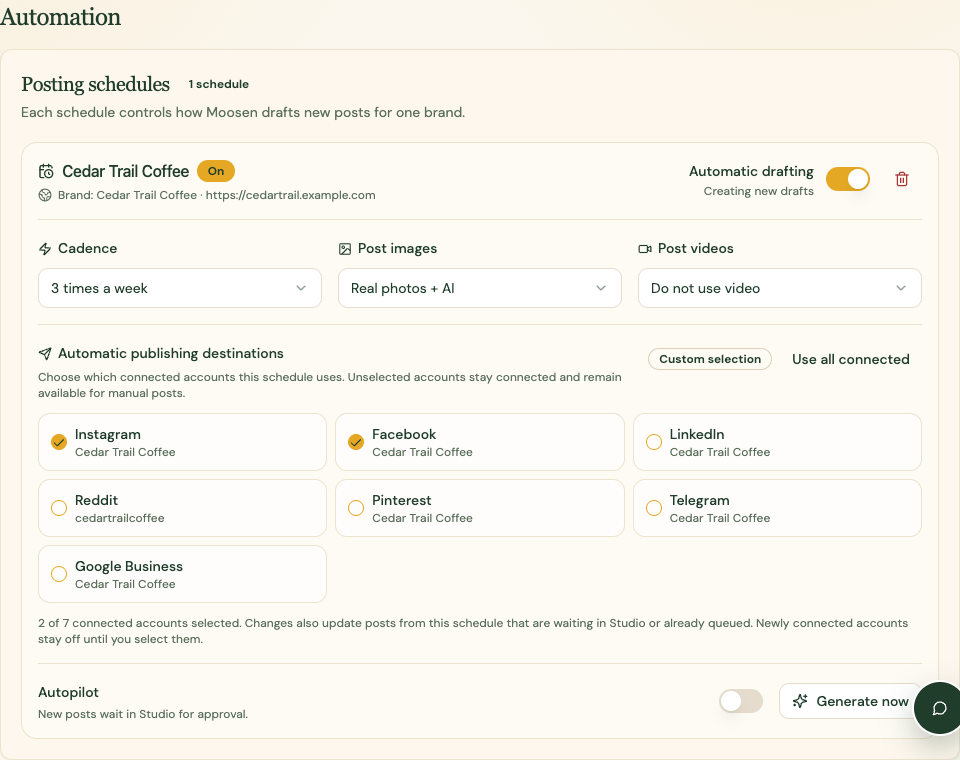
- Open Settings → Automation → Posting schedules.
- Find the correct brand's schedule.
- Check its cadence and publishing destinations.
- Turn on Autopilot and check that the setting is saved.
An active subscription and working destination connections are still required. Autopilot doesn't bypass platform rules or guarantee that every post will publish successfully.
Return to approval first#
Turn autopilot off on the relevant schedule. Review new drafts in Studio again.
Check Posts and Calendar for content that is already queued. Changing autopilot isn't a blanket cancellation of previously scheduled posts.
Stop drafting or pause publishing#
These are separate controls.
- Automatic drafting stops new drafts for a schedule.
- Autopilot controls whether new generated posts need approval.
- Pause publishing provides a temporary publishing pause with a resume date.
Use pause publishing when you need a temporary break, and inspect already queued content before resuming.