
Use the manual composer when you have a specific announcement, photo, or message to share. User-authored manual posts don't consume the generated-post allowance.
Choose destinations#
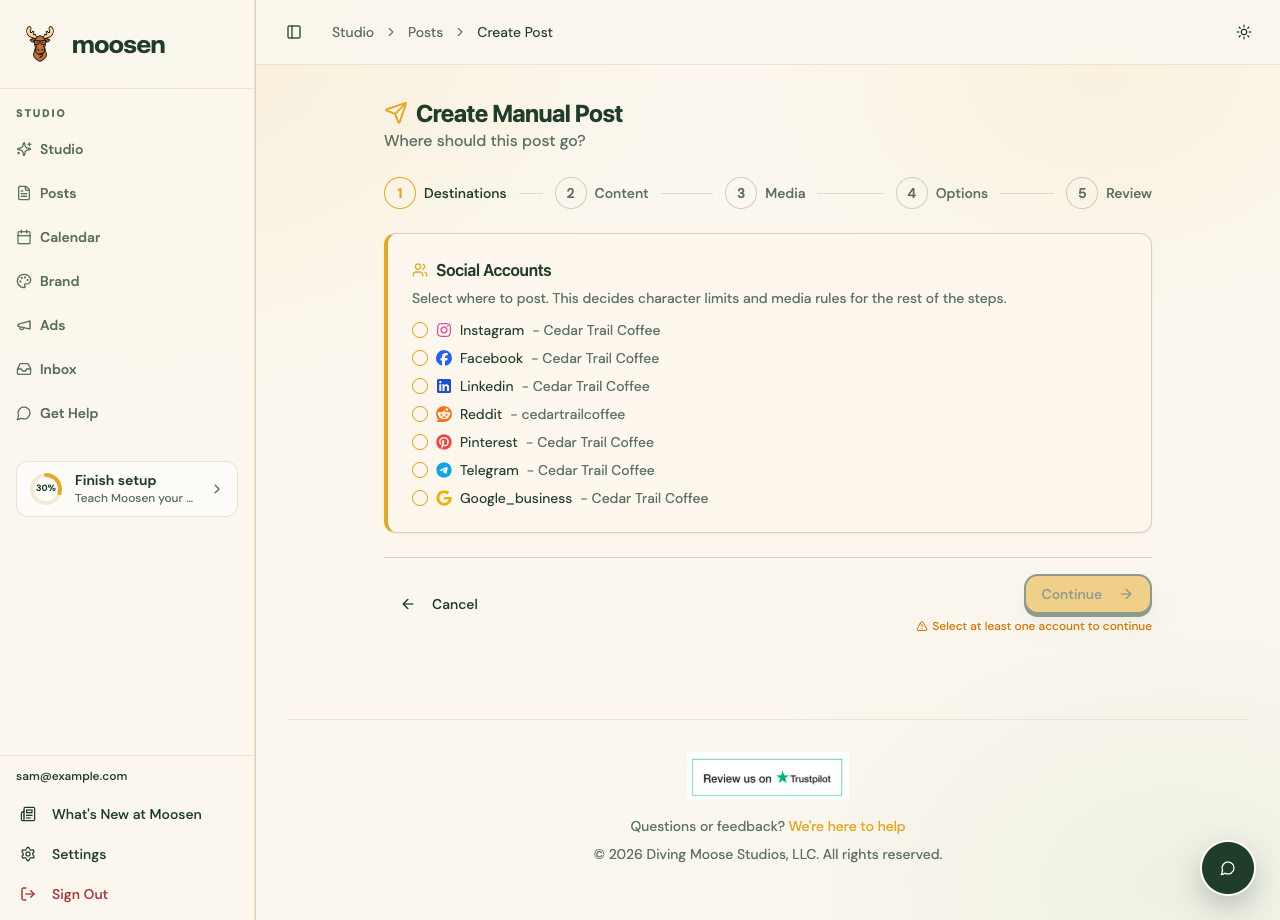
- Open Posts and choose New Manual Post.
- In Destinations, select the connected accounts that should receive the post.
- Select Continue.
Write the content#
In Content, select Write it myself and enter your caption. Check the displayed length guidance for the selected destinations. If Reddit is selected, review its separate title and body.
To get help writing, choose Use Moosen Autopilot Intelligence™ instead. See generate a post from an idea.
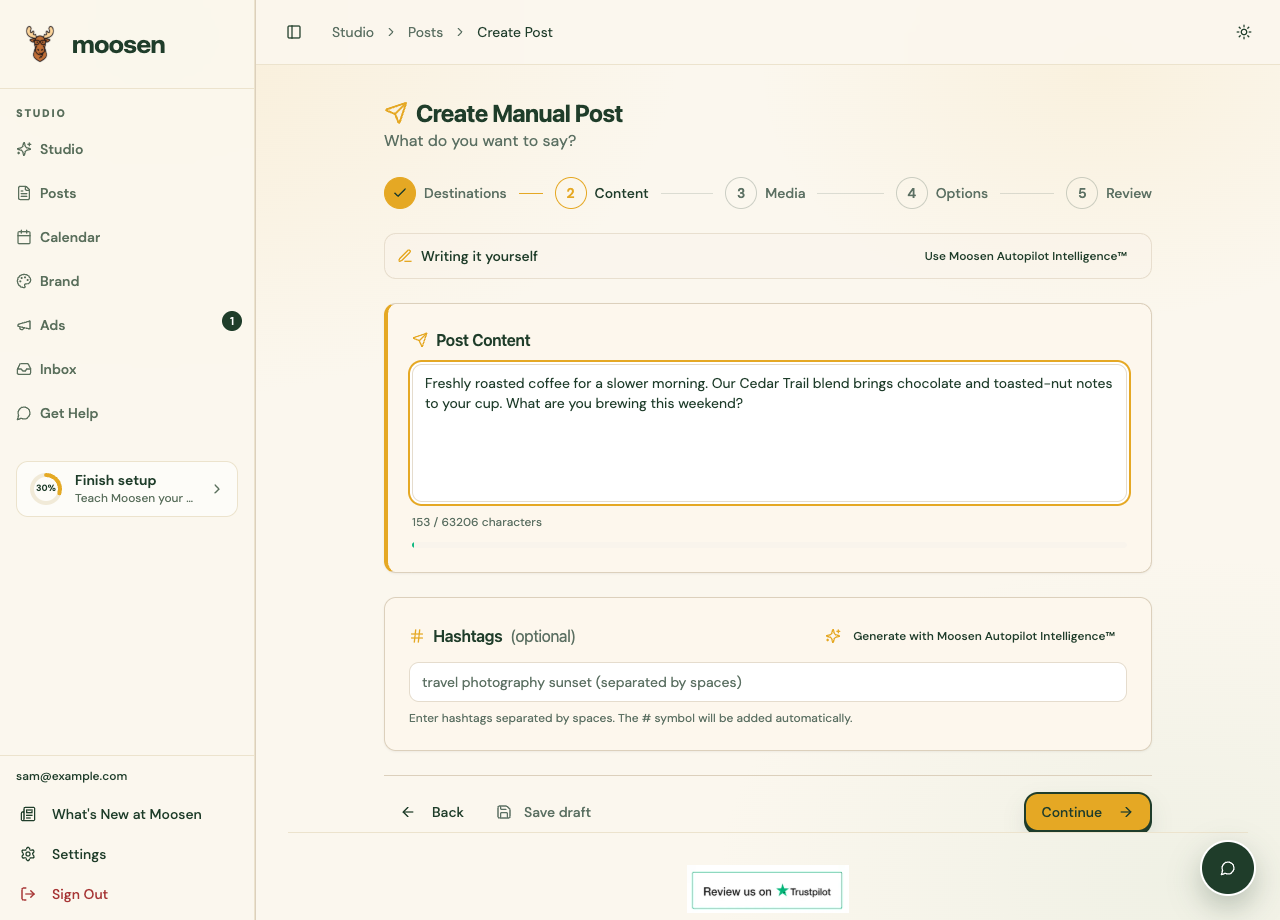 Write your caption and check destination-specific guidance. Sample data. Select image to enlarge.
A shared post normally uses one caption. Make separate posts if you want entirely different wording for different channels.
Use the optional Hashtags field to enter tags separated by spaces. Moosen adds the # symbol. You can also generate suggested hashtags after writing the caption. Check each tag before keeping it.
Save an unfinished draft#
After choosing at least one destination and entering some content, select Save draft at the bottom of the composer. You can save before adding the media required for publishing. Find the draft in Posts and use Edit to finish it later.
Add media and options#
In Media, upload the images or video the post needs. Continue to Options and complete the fields shown for your destinations, such as a Pinterest board or an Instagram format.
See images and video and the channel guides for details.
Review and publish#
- Open the Review step.
- Under When to Post, select Now or Schedule.
- For a scheduled post, choose a future date and time.
- Check each destination preview, the content, and the media.
- Use the final publish or schedule action.
- Open Posts to verify status and delivery.
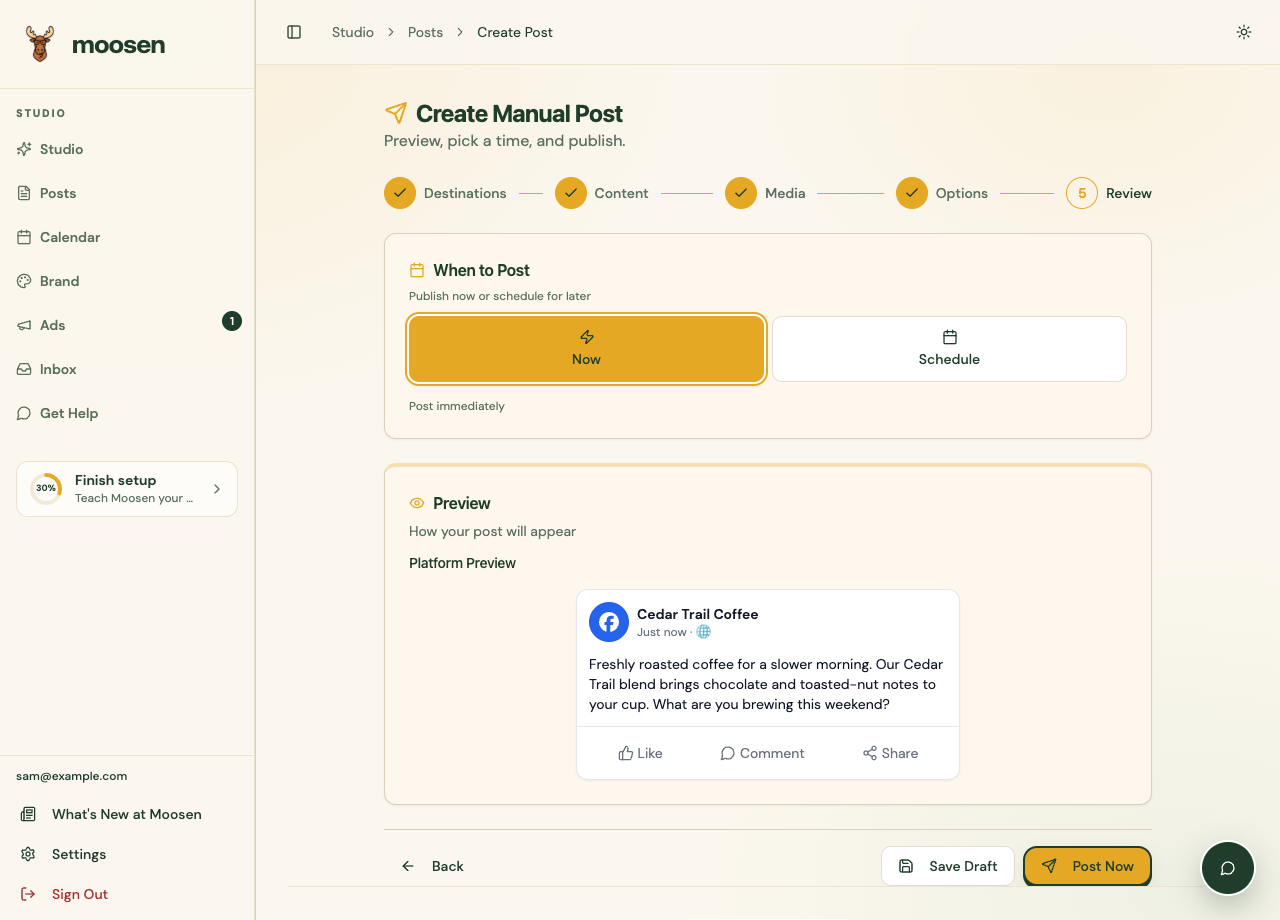 Check the preview and publishing time before the final action. Sample data. Select image to enlarge.
Publishing requires an active subscription. Selecting Now sends the post for immediate publishing; it isn't a draft-save action.