
Removal depends on whether the post is still a draft, scheduled, or already live. Read the confirmation for the selected post before continuing.
Start removal#
- Open Posts and find the correct item.
- Open Post actions → Delete.
- Read the explanation of what will be removed and which destinations are affected.
- Confirm only when the selected post and action are correct.
- Check the resulting status and any remaining live links.
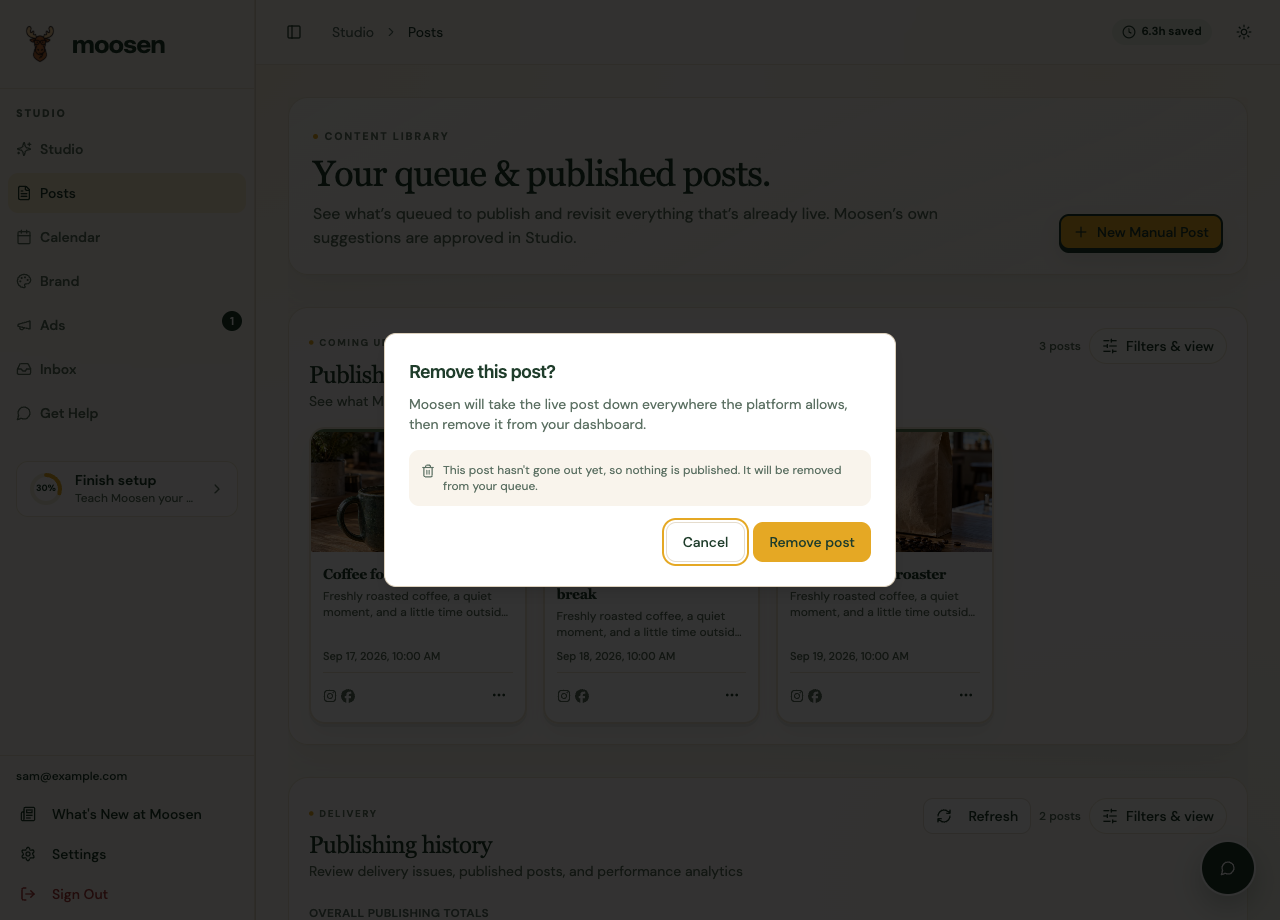 Read the removal confirmation before deleting content. Sample data. Select image to enlarge.
Check live copies#
A post published to several destinations can have several live copies. Removing its entry in Moosen and removing a live copy from a platform are distinct outcomes.
Follow the result shown for each destination. If Moosen can't remove a live copy, use the platform's own controls for that copy and confirm the result there.
Continue an incomplete removal#
If Continue removal appears, reopen it and review the remaining work. Avoid reposting the same content while removal is unresolved.
For a temporary break in posting, use Pause publishing instead of deleting content you intend to use later.